
Getting started
Install on your phone
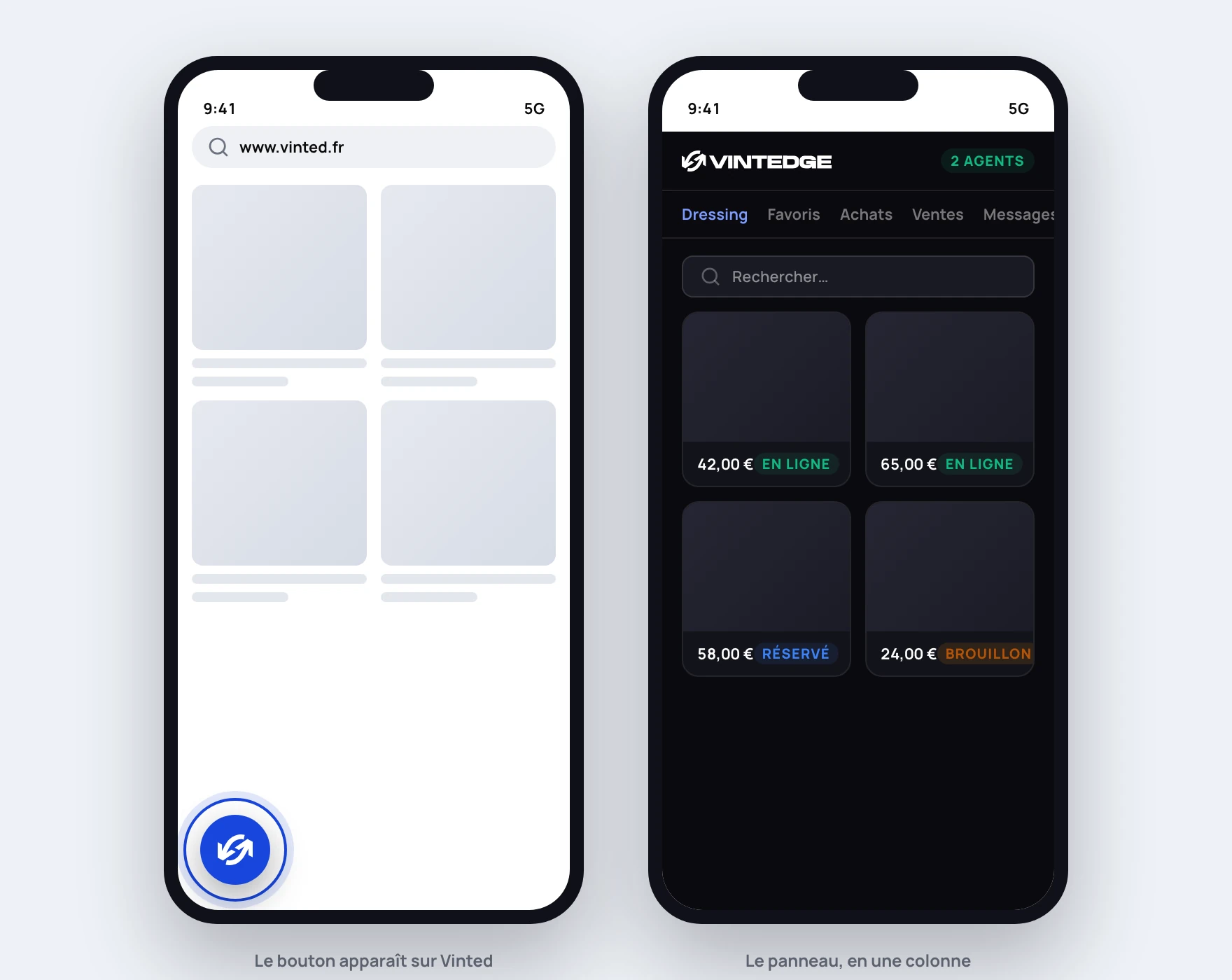
Vintedge is not desktop-only. The panel is designed to fit a phone screen, and you can run your shop from your sofa.
There is a single condition, and it comes from Apple and Google, not from us: you need a browser that can install Chrome extensions.
Why your usual browser is not enough
Safari on iPhone and Chrome on Android do not install extensions. That is not a Vintedge limitation: no extension of any kind can be installed on them.
The solution is the same for everyone: use another browser, one that does allow it. You keep Safari or Chrome for everything else; this one is only for Vinted.
On iPhone and iPad
The browser to install is called Orion. It is free, available on the App Store, and it can install extensions from the Chrome Web Store.
- Install Orion from the App Store.
- Open it, go to its settings, then to the section about extensions.
- Choose to add an extension from the Chrome Web Store, then search for Vintedge.
- Install it and allow it when Orion asks you to.
- Open
vinted.co.ukin Orion.
The blue Vintedge button appears at the bottom of the page. Tap it: the panel opens.
Orion moves fast, and the exact location of the extensions setting changes from one version to the next. If you cannot find it, search for "extensions" in the browser settings — it is always there.
On Android
Several browsers accept Chrome extensions. The ones our users pick most often are Kiwi Browser, Yandex Browser and Microsoft Edge.
- Install one of them from the Play Store.
- Open its menu, then the Extensions entry (depending on the browser, it may be in the settings).
- Go to the Chrome Web Store, search for Vintedge, and add it.
- Open
vinted.co.ukin that same browser.
The blue button appears, and the panel opens when you tap it.
Signing in
It is exactly the same procedure as on a computer: tap the blue button, Sign in, confirm the code shown on vintedge.app, then log in to Vinted normally in that browser.
Your Vintedge credentials are the same everywhere. See Connect the extension to your account.
Watch out for the Vinted account. This browser has its own session: the Vinted account you log into there is the one Vintedge will act on from the phone, independently of what is running on your computer. See How multi-account works.
What changes once it is installed
The panel switches to a single column. The tabs scroll horizontally, the grids tighten up, the buttons are sized for a finger.
No tab is reserved. On a computer, Vintedge pins a Vinted tab for its background work. On a phone, where you effectively only have one tab on screen, that behavior is switched off: Vintedge makes do with the Vinted tab you have open. See The reserved Vinted tab.
Downloads are temperamental. Fetching a shipping label or cropping a PDF assumes the browser can save a file generated on the fly. That works on most Android browsers, much less well on iOS. Keep those operations for the computer — you need a printer anyway.
The real limit: phones put tabs to sleep
This is the point to understand before relying on it.
A phone suspends background tabs to save battery. As soon as you lock the screen or switch apps, the browser is paused — and with it, the Vintedge agents. They will pick up where they left off when you come back, but they will have done nothing in the meantime.
In practice:
| Use | On a phone |
|---|---|
| Browsing, replying, reposting by hand | Very good |
| Starting an action and watching it run | Very good |
| Running agents continuously | No — the screen has to stay on, on that tab |
If you want the Favorites agent, Auto-Repost or the automatic replies to run permanently, leave a computer switched on. The phone is an excellent control station, not a server.
For a one-off session — you want to repost twenty items during a commute — just stay on the tab, screen on, and plug the phone in: the batch will finish.
What works very well from the dashboard
Remember that the dashboard is an ordinary website: it opens in any browser, including Safari or mobile Chrome, with nothing to install.
To check your numbers, answer a buyer, confirm stock links or keep an eye on your parcels, it is often more comfortable than the panel. The combination that works best: the dashboard on the phone, the extension on the computer doing the work.
Better still: the dashboard installs like an app, with its own icon and notifications when a buyer writes to you. See Install the Vintedge app.
If it does not work
The blue button does not appear — check that you really are in the browser where you installed the extension (not Safari or Chrome out of habit), and that the page really is a Vinted domain. Reload the page.
The extension does not appear in the list — some versions of these browsers require you to enable the extension explicitly after installing it. Go back to their extensions screen and check that it is active.
"Vinted session inactive" — log in to Vinted in that browser, then reload the page. The phone's session is independent of the computer's.
Everything stops when I lock the screen — that is the behavior described above, it is normal.
The display is broken or unreadable — report it with your phone model and the browser you used, through the dashboard chat. The panel is tested on screens from 360 to 414 pixels wide; outside that, there may be surprises.