
The dashboard
Dashboard tour
The dashboard lives at vintedge.app/dashboard. It displays what the extension sends it, and works as a remote control for what the extension has to do.
The data dashboard requires the Growth or Elite plan. Below that, the pages exist but stay blurred, with an invitation to change plan. The extension itself works from Starter on.
Navigation
The left menu is organized in sections:
| Section | Pages |
|---|---|
| — | Dashboard |
| Activity | Analytics · Sales · Purchases · Messages |
| Catalog | Stock · Wardrobe · Poster |
| Logistics | To collect · Labels |
| Finance | Invoices · Accounting · Expenses |
| Automation | Agents |
| Community | Leaderboard · Affiliate |
| Account | My account · Vinted Accounts · Security |
Each section folds away, and the one containing the current page opens automatically. The sidebar collapses entirely with the button at the top, if you want the full width.
On mobile, a bar of five tabs at the bottom of the screen: Dashboard, Sales, Stock, Messages, and More, which opens the full menu.
Global search
⌘ K on Mac, Ctrl K elsewhere. That is the shortcut to remember.
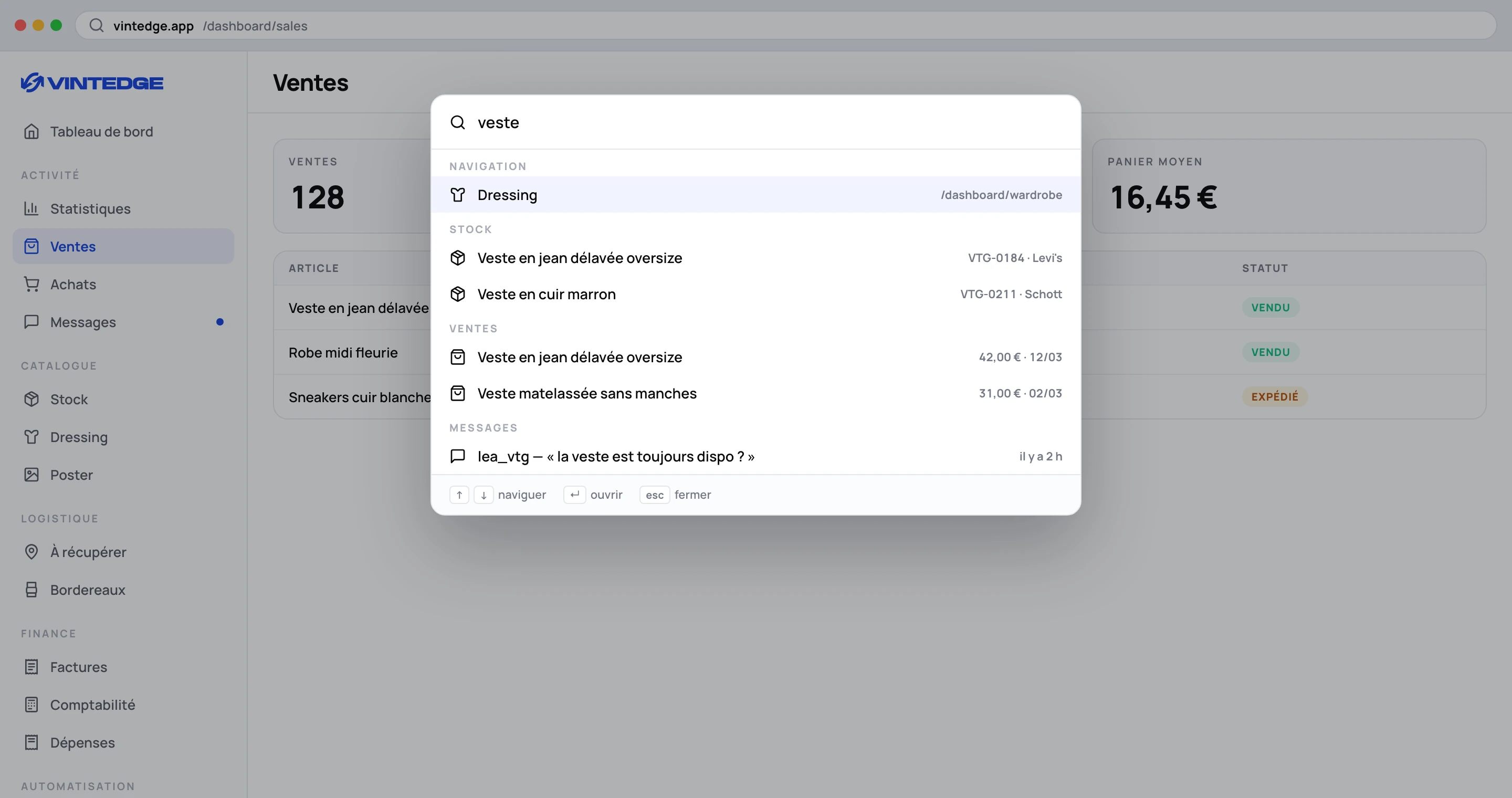
The palette searches simultaneously in:
- Navigation — every page, with fuzzy matching. Type
sal,statoracc, that is enough. - Stock, Sales, Purchases, Messages — up to six results each.
With nothing typed, it shows your last five destinations.
By keyboard: arrows to move, Enter to open, Escape to close, Home and End to go to the first or last result.
Content search starts from two characters. Accents are ignored on stock: ecole
finds école.
A result takes you straight to the right place: a sale opens the sales list with that sale highlighted, an item opens its record.
Hidden accounts are excluded from sales, purchases and messages results, exactly as in the lists.
The account selector
It appears in the top bar as soon as you have at least two Vinted accounts, on every data page. How it works is detailed in Manage your Vinted accounts.
The extension indicator
To the right of the top bar, an icon with a green or red dot: Extension connected or disconnected.
A click opens a panel that gives, per Vinted account:
- the real online status, aggregated across all your Chrome windows;
- the date of the last sync;
- a button to sync that account.
Further down, the detail of the six types of synced data — Sales, Purchases, Wardrobe, Messages, Agents, Promos — with their respective dates.
It is the first place to look when a piece of data seems missing or out of date.
Updates
The bell shows product news, with an unread badge. A click gives the list; "See all updates" opens the full changelog.
The support chat
The blue bubble at the bottom right opens a conversation with the team. It can be moved.
You can attach files (10 MB per file, 25 MB in total) — a screenshot is often worth ten messages. When the team replies while the panel is closed, a preview briefly appears above the bubble.
Conversations have a status: Open, Pending, Resolved, Closed. A resolved conversation reopens simply by writing in it.
Getting started
On the home page, a five-step checklist walks you through: connect a Vinted account, run a first sync, complete your profile, set up an agent, explore a key feature. Each step unlocks a badge, and the checklist disappears by itself once finished.
Installing it as an app
The dashboard can be added to your home screen or your desktop, and can notify you of new messages even when closed. See Install the Vintedge app.