
The extension day to day
The wardrobe
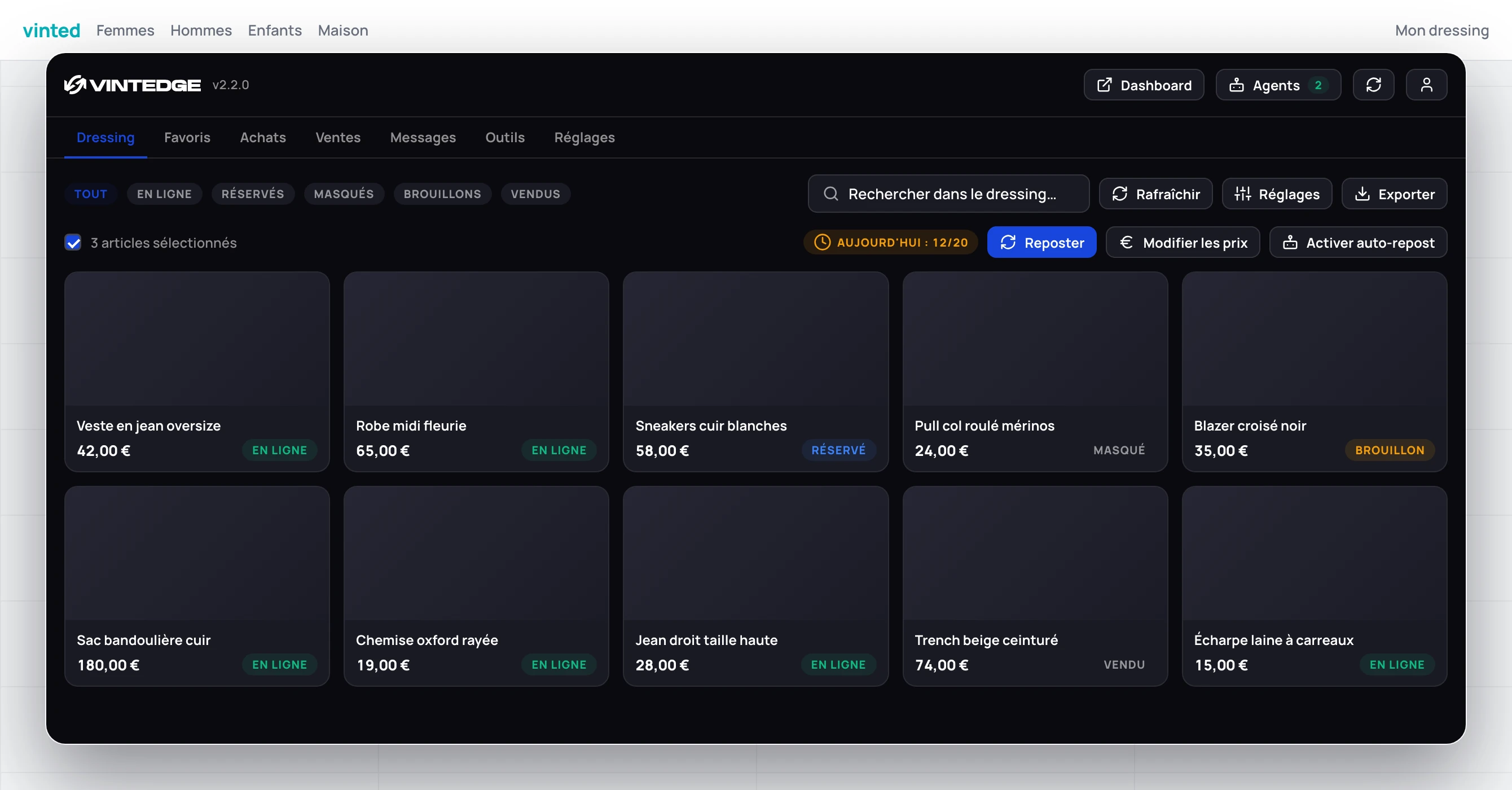
The Wardrobe tab lists all your Vinted listings. It is where most bulk actions start.
Finding what you are looking for
Status filters: All · Active · Reserved · Hidden · Drafts · Sold.
Sorting: newest, oldest, title A→Z or Z→A, price, views, likes. Sorting by likes descending is the best way to spot what draws interest without selling — in other words, what you should drop in price or repost.
Search: on title and brand.
Size filter: the sizes actually present in your wardrobe.
If the list is empty while your wardrobe is not, click Refresh: the data comes from a local cache.
Selecting several items
- Click an item's checkbox: selects it.
- Shift + click: selects the whole range from the last item clicked.
- The checkbox at the top selects everything matching the current filters.
The "X items selected" counter and the action bar appear as soon as one item is ticked.
Bulk actions
| Action | Effect |
|---|---|
| Repost | Recreates the selected listings (see Reposting) |
| Edit price | Bulk price adjustment, with rules and rounding |
| Hide / Unhide | Removes listings from the Vinted shop window, or puts them back |
| Enable / disable auto-repost | Adds or removes items from the tracking list |
| Delete | Deletes permanently on Vinted |
Every bulk action opens a progress window: item by item, with the detail of successes and failures. You can cancel along the way; what is already done stays done.
Editing prices in bulk
This window deserves detail, because it can touch dozens of listings at once.
- Strategy: do not change, fixed price, decrease, increase.
- Type: an amount in euros, or a percentage.
- Rounding: none, whole number,
.99, or.00 / .50. - Minimum price: a floor prices will never cross. Always fill it in.
- Delay between items: from 1 to 60 seconds. Do not go too low, Vinted limits changes made in quick succession.
A preview shows the total before and after, along with the number of items actually affected (those blocked by the minimum price stay unchanged).
Actions on a single item
An item's menu offers:
Actions — Repost · Edit price · Hide / Unhide · Open on Vinted · History · Delete.
Cloud backup — Create or delete a backup of the photos. See below.
Auto-repost — Tracking enabled, then three sub-options: repost when sold, scheduled repost, scheduled price drop.
An item's history
The Item history window traces everything Vintedge has done to it: manual
reposts, reposts after a sale, scheduled reposts, price changes (30€ → 27€),
failures. It also shows the date of the next planned repost and price drop.
It is the first place to look when you wonder "why did this item change price?".
Cloud photo backup
Vinted recompresses photos on every publication. Reposting an item several times therefore degrades its images, until it becomes visible.
Cloud backup stores the original photos at Vintedge. On subsequent reposts, it is those photos that are reused, not the degraded versions fetched back from Vinted.
- It is created manually from the item's menu, and automatically during a repost.
- It follows the item: after a repost, it is attached to the new listing.
- The quota is monthly and depends on your plan. The Sync & backups window shows your usage and the reset date.
- An item that is sold and not reposted has its backup marked for cleanup.
Turn it on for the items you will repost often. That is the best quality-to-quota ratio.
The daily limit
If you have enabled it in the repost settings, a banner shows "Today: 12/20". It turns orange at 80%, and red when the limit is reached — subsequent reposts are then refused until the next day.
Exporting
The Export button produces a CSV, a JSON, or copies to the clipboard.
The Advanced tab lets you choose and reorder the columns, set the date format, and above all tick UTF-8 with BOM (Excel) — without which accented characters display badly in Excel.
Columns offered by default: ID, title, brand, size, color, price, currency, status, views, likes, creation date, URL. Description and photo URL are available but switched off.