
Getting started
Install the Chrome extension
Supported browsers
On desktop: Chrome and Brave. Those are the two browsers Vintedge is tested on, under Windows, macOS and Linux. Other Chromium browsers (Edge, Opera, Vivaldi) sometimes manage to install it, with no guarantee — if something behaves unexpectedly, try again on Chrome before reporting a bug.
On a phone it is possible too, as long as you use a browser that can install Chrome extensions: Orion on iPhone, Kiwi or Yandex on Android. The procedure is detailed in Install on your phone.
The rest of this page describes installing on a computer.
Install
- Open the Vintedge listing on the Chrome Web Store.
- Click Add to Chrome, then confirm.
- Click the jigsaw-piece icon in the Chrome toolbar, then the pin next to Vintedge.
Pinning is not mandatory, but it makes the small status window visible, which is handy when something is not syncing.
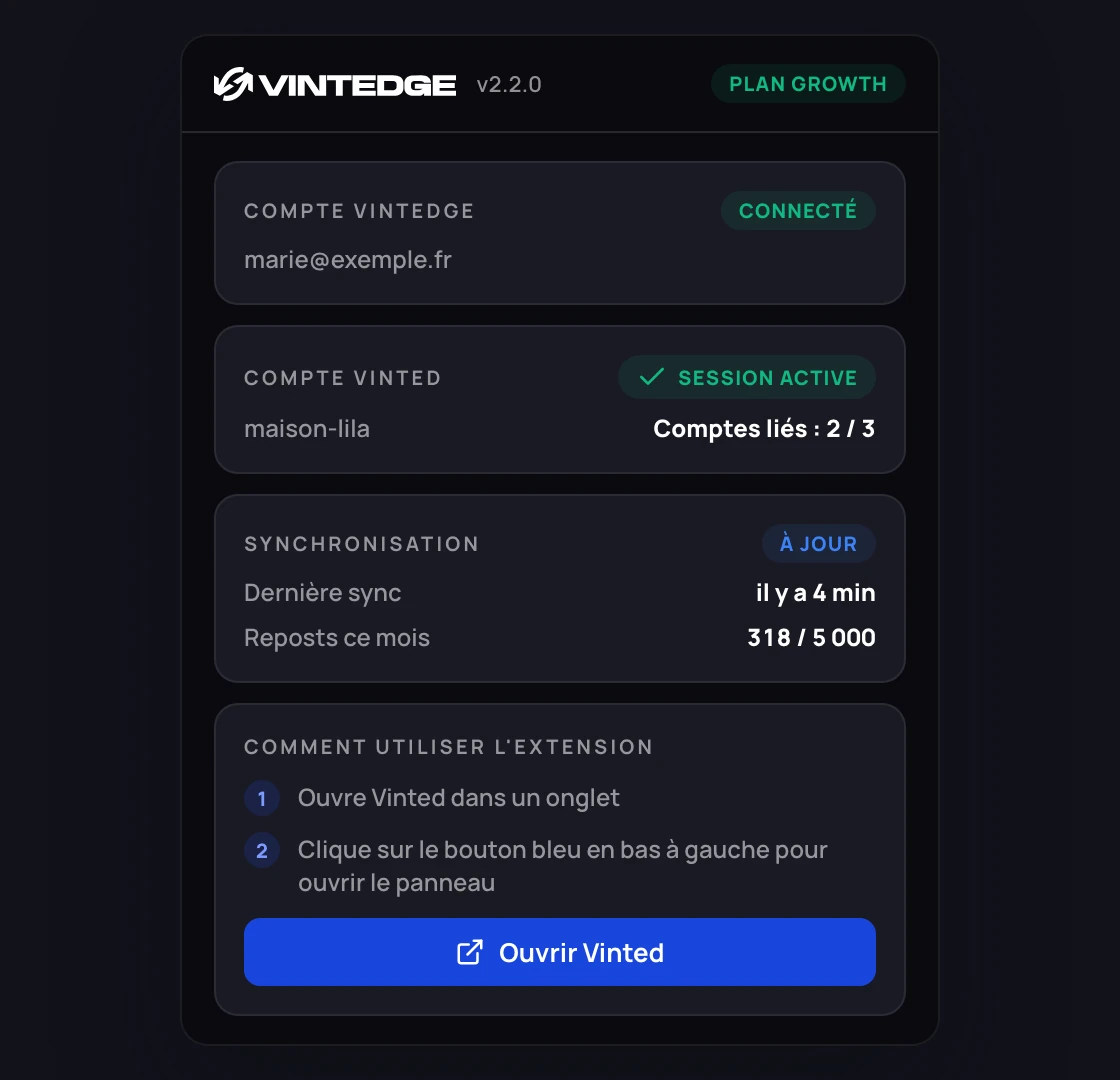
Where the extension actually lives
This is the part that surprises everyone: you hardly ever use the extension from the toolbar icon. That icon only shows a status summary.
The real interface is a panel that opens on top of the Vinted site:
- Open vinted.co.uk (or your usual Vinted domain).
- A round blue button appears at the bottom left of the page.
- Click it: the Vintedge panel opens with its seven tabs.
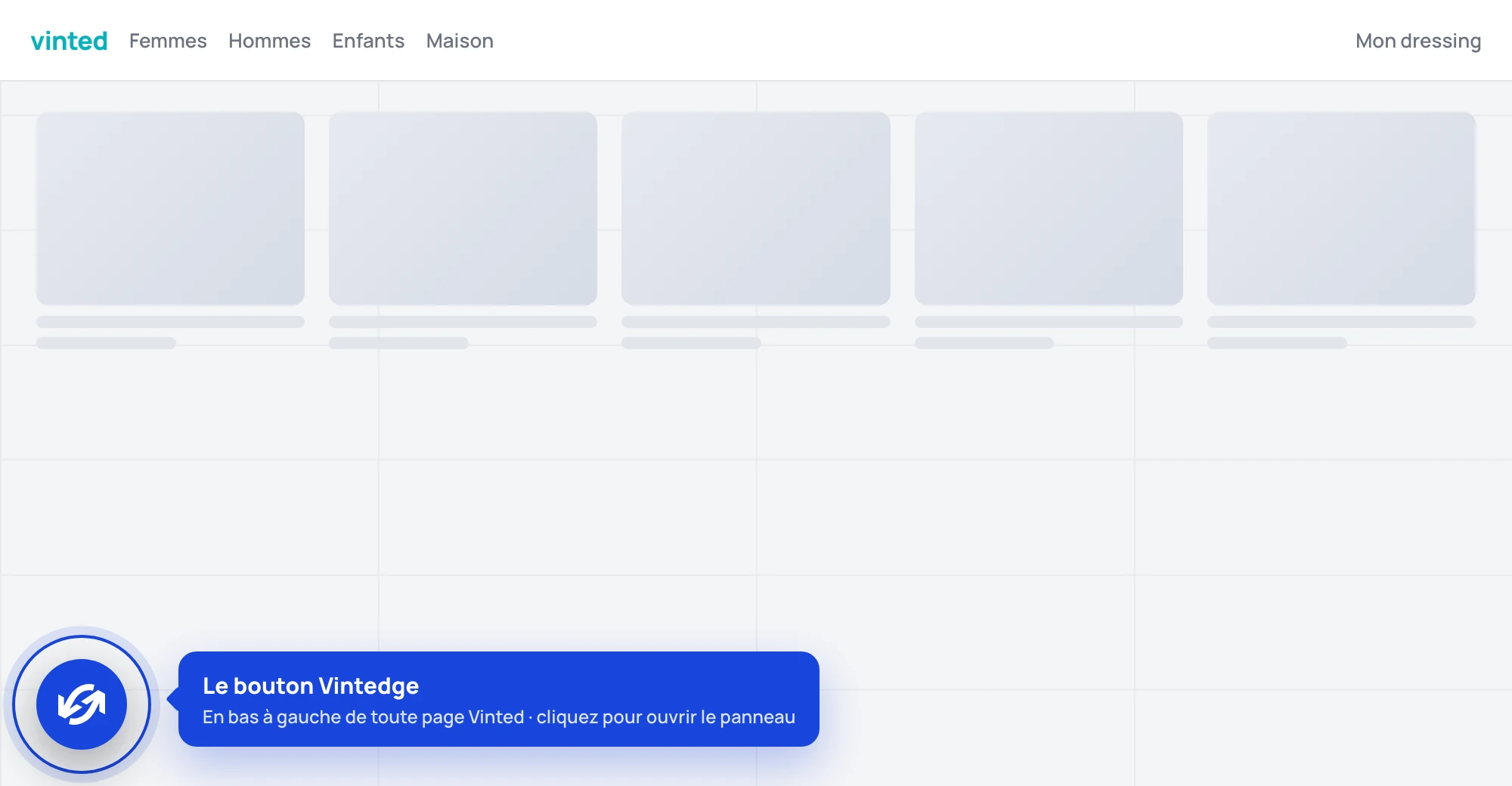
The button can be moved: drag it wherever you like on the page, its position is remembered.
There is no options page in chrome://extensions. Every setting lives in
the panel, on Vinted.
The permissions it asks for
Chrome shows a list at install time. Here is what each one is actually for.
| Permission | What it is for |
|---|---|
| Access to Vinted sites | Read your listings, sales, purchases and messages, and act on your behalf on Vinted. Without it, nothing works. |
storage | Remember your settings and caches locally, in your browser. |
cookies | Build the connection to Vinted's real-time stream, which lives on a subdomain. |
tabs | Find a Vinted tab to route actions through (see below). |
alarms | Schedule background tasks: syncing, agents, scheduled reposts. |
downloads | Download shipping labels and cropped PDFs. |
identity | Google authorization, only if you turn on reading pickup codes from Gmail. |
scripting | Show the banner on the reserved Vinted tab. |
offscreen | Keep the real-time connection with the dashboard alive. |
notifications | Reserved for system notifications. |
The extension accesses no site other than Vinted, vintedge.app and, if you explicitly allow it, Gmail in read-only mode.
Why a Vinted tab has to stay open
Vinted refuses requests that do not come from one of its own pages. So the extension routes its actions through a Vinted tab open in your browser.
With no Vinted tab, you will see this message (the extension displays it in French):
« Aucun onglet Vinted ouvert dans le navigateur. Ouvre vinted.fr (ou .it/.de/…) puis réessaie. » — No Vinted tab open in the browser. Open vinted.fr (or .it/.de/…) then try again.
It is also the reason the extension pins a Vinted tab and asks you not to browse in it — see The reserved Vinted tab.