
The dashboard
Stock
Stock is what turns Vintedge into a management tool. Without it, you have sales; with it, you have margins.
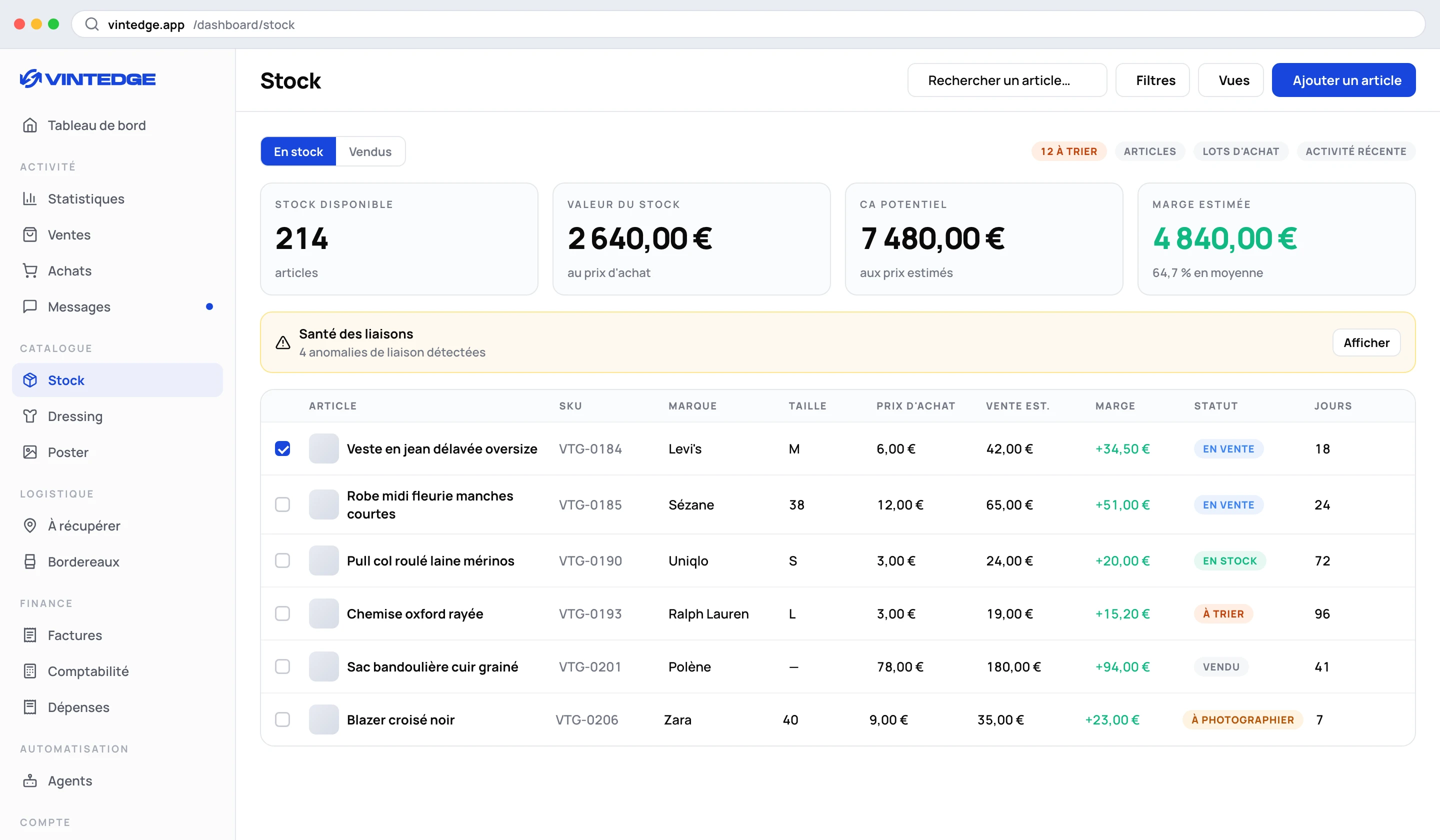
The indicators
A toggle at the top: In stock or Sold.
- In stock — stock available, stock value, potential revenue, estimated margin.
- Sold — items sold, total real margin, average time to sell, top brand.
Average time to sell is a figure people rarely look at and that decides everything: an item at 40% margin that takes six months to go brings in less than an item at 25% that goes in three weeks.
Three tabs
Items — the inventory piece by piece. Purchase bundles — your bulk purchases, with their break-even. Recent activity — the log of what has moved.
Items
In the table: title, SKU, brand, size, purchase price, estimated selling price, margin (real or estimated, as an amount and a percentage), status, condition, location, days in stock, days online, Vinted transaction.
Two columns not to be confused:
- Days in stock — since the purchase. That is the holding time, your money tied up.
- Days online — since it was listed. That is the real time to sell.
An item bought 90 days ago but listed 5 days ago is not an item that does not sell: it is an item you had not listed.
Price, status and location are edited directly in the table. Switching an item to "Sold" with no linked sale automatically opens the linking window.
The filters
Item — brand, category, condition (new with tags, new without tags, very good, good, satisfactory). Storage — location. Age — days in stock: more than 30, 60, 90 or 180 days. Finances — price range. Status — in stock, listed, sold, returned, lost, to sort, to photograph, personal, plus your custom statuses.
A badge to the right of the tabs gives direct access to the To sort filter: that is your inbox pile.
Adding to stock
Single item — every field: title, photo, purchase invoice as PDF, brand, size, Vinted category, purchase price, estimated selling price, status, date, condition, location, description, colors, parcel size, hashtags, materials, weight.
Bulk add — for a bundle: name, quantity, total cost of the bundle,
supplier. The unit price is calculated and shown (€90 ÷ 30 = €3 each).
Import purchases — brings in your Vinted purchases that have not yet entered stock.
Locations
Actions → Storage locations. Create your locations ("Shelf A", "Red bin"), with a color.
The warehouse view shows your locations as cards with their counters — in stock, listed, sold. A click filters the list.
It looks like a detail until the day you sell an item you cannot find.
SKUs
Actions → SKU settings. The SKU is the number that links a listing online to a physical object in your storage.
- Automatic assignment — every new item gets the next number.
- Prefix (
VTG-) and number of digits. - Number the existing items — catches up the whole inventory at once.
- SKU in the listings — do not add, at the end of the description, or at the end of the title.
Combine it with the label text set to "SKU extracted from the description" (see Sales and shipping labels): the SKU goes out in the listing, comes back on the label, and takes you straight to the right bin.
Splitting an item
A bundle bought in one go can be split into individual items: number of items, then title, brand, size and purchase price for each. A check verifies that the sum matches the original price.
An item with active listings cannot be split.
Link health
A collapsible panel at the top of the page flags inconsistencies, with a one-click fix where possible:
| Anomaly | What it means | Fix |
|---|---|---|
| Sales with no item | A completed sale with no item or listing linked | Open the sale |
| Sold with no sale | An item marked sold, linked to no sale | Put back in stock |
| Inconsistent bundle splits | The shares of a bundle's items no longer total the earnings | Recalculate |
| Missing listings | Every linked Vinted listing has disappeared | View the item |
| Purchases not imported | Purchases more than 30 days old never entered into stock | Import |
Work through this panel once a week: that is what keeps your figures correct.
An item's history
An item's record contains a readable timeline, from purchase to sale:
Bought in a bundle of 30 items — share: €3.00 → Entered into stock (automatic import from the purchase) → Published on @maison-lila → Reposted 2 times → Sold — €24.00 → Result: profit €21.00, margin 87.5%, ROI 700%, 42 days in stock
Each event says whether it was automatic or manual.
Purchase bundles
The Purchase bundles tab tracks each bundle: total cost, number of items, sold, remaining, margin — and above all Broken even or €34 to go before break-even.
It is the most honest way to judge a sourcing run: not at the first item sold, but when the bundle has paid for itself.
Two distinct deletions: delete the bundle alone (the items stay in stock, simply detached), or delete the bundle and its items.