
The dashboard
Sales
The Sales page is the complete list of what you have sold, across all your Vinted accounts, plus the sales you enter by hand.
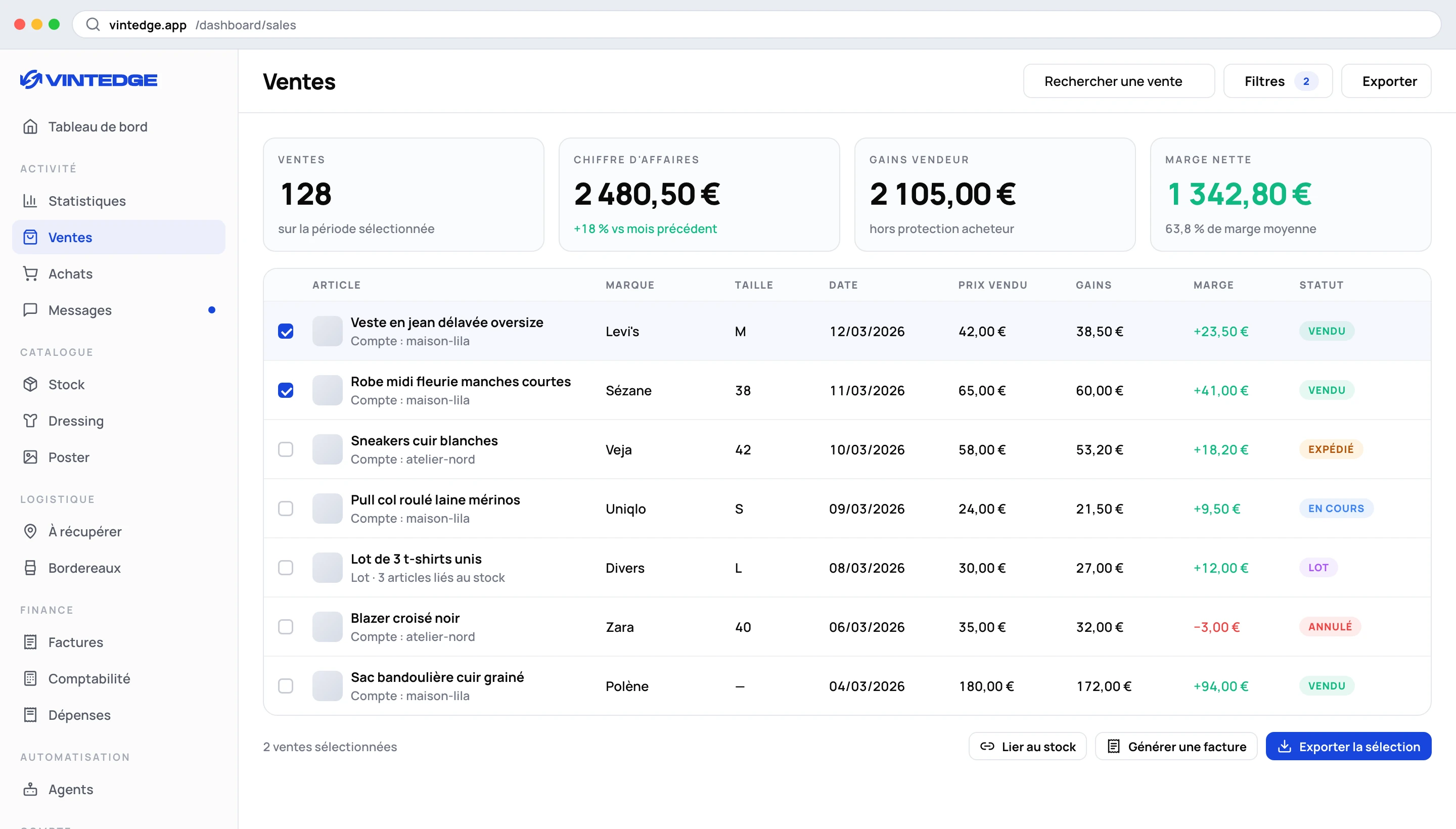
The period indicators
At the top, three cards — Sales, Earnings, Average basket — with a selector: Today · 7 days · 30 days · All. Each card shows the change compared with the previous period. Your choice is remembered.
Filtering
The Filters button opens a panel organized in groups. Each active filter becomes a removable tag under the toolbar, and Clear all resets everything.
General — status (Completed, Pending, Action required, Cancelled, Dispute), bundle or single item, source (Vinted or manual), and stock link (all, linked, unlinked).
Item — brand, size.
Shipping — country, carrier, delivery status.
Finances — profitability (profitable or at a loss) and price range.
The profitability filter is the one people forget and the one that teaches the most: filtering on "at a loss" shows you in thirty seconds what is not working in your sourcing.
Two ways of looking
Table — dense, sortable, with continuous scrolling across all your sales: no pagination, the scrollbar covers everything.
Grid — cards, with an Auto mode that works out how many to show to fill the screen exactly. Shift + click selects a range.
On mobile, the display switches to cards automatically — your desktop preference is kept and comes back on a large screen.
A sale's record
A click on a row opens a side panel that brings everything together:
Finances — item price, Vinted VAT refund where applicable, and total earnings.
Performance — visible as soon as the purchase cost is known: cost, profit, then margin, ROI, multiple, and the number of days spent in stock. That is the real balance sheet of the operation.
Shipping — carrier and tracking link.
Actions — view on Vinted, fetch the shipping label, generate an invoice.
Stock link — this is where you link the sale to the item in your inventory. The subject has its own page: Link your sales to your stock.
The arrows at the top of the panel move from one unlinked sale to the next — it is built for working through the matching in one go.
Handling several sales at once
Select, and a floating bar appears.
Labels — two formats to choose from: a single print-ready PDF, or a ZIP of separate files. Two actions: Crop the labels (thermal printer format, carrier detected automatically) or Download the original labels.
The button says how many sales in your selection actually have a label available.
Cropping settings (cog) — add a text on the label, with its source (title, last four digits of the transaction, title + transaction, last word of the title, half-title), its position (top or bottom) and its size.
Delete — mind the nuance: Vinted sales are hidden and will not come back on the following syncs; manual sales are deleted permanently, and the linked items go back into stock.
Adding a manual sale
The Add a sale button is for everything that is not Vinted: a sale on another platform, a hand-to-hand sale, another Vinted account you have not connected.
Fields: title, stock items to link, photos, platform, price, currency, fees, shipping, quantity, date, buyer, payment method, notes. The net (price minus fees) is calculated in front of you.
Two shortcuts are offered for the platform: "Vinted (other account)" and "In person / cash".
If you link stock items, the quantity is derived from the number of items and can no longer be edited — which is consistent, and avoids inventory inconsistencies.
The point: your analytics and your accounting then cover all of your business, not only Vinted.
Exporting
The Export CSV button offers CSV, Excel, JSON, or a direct copy to the clipboard.
The export applies your filters and covers the whole result set, not only the page shown. Filter first, export afterwards.
Saved views
The Views button stores a combination of filters under a name — see Saved views.